A4 Booklet Printing Explained for Better Results
A4 Booklet Printing produces a finished booklet where each closed page measures 210 × 297 mm, created by printing two A4 pages per side on a larger A3 sheet, then folding and binding them together. Total page count must be a multiple of 4 to avoid blank pages, and saddle-stitch binding works best for 8–64 pages. Use 90–120 GSM for inner pages and 200–300 GSM for covers. Adobe Acrobat’s Booklet mode handles imposition automatically, including manual duplex reloading for printers that can’t flip pages themselves.
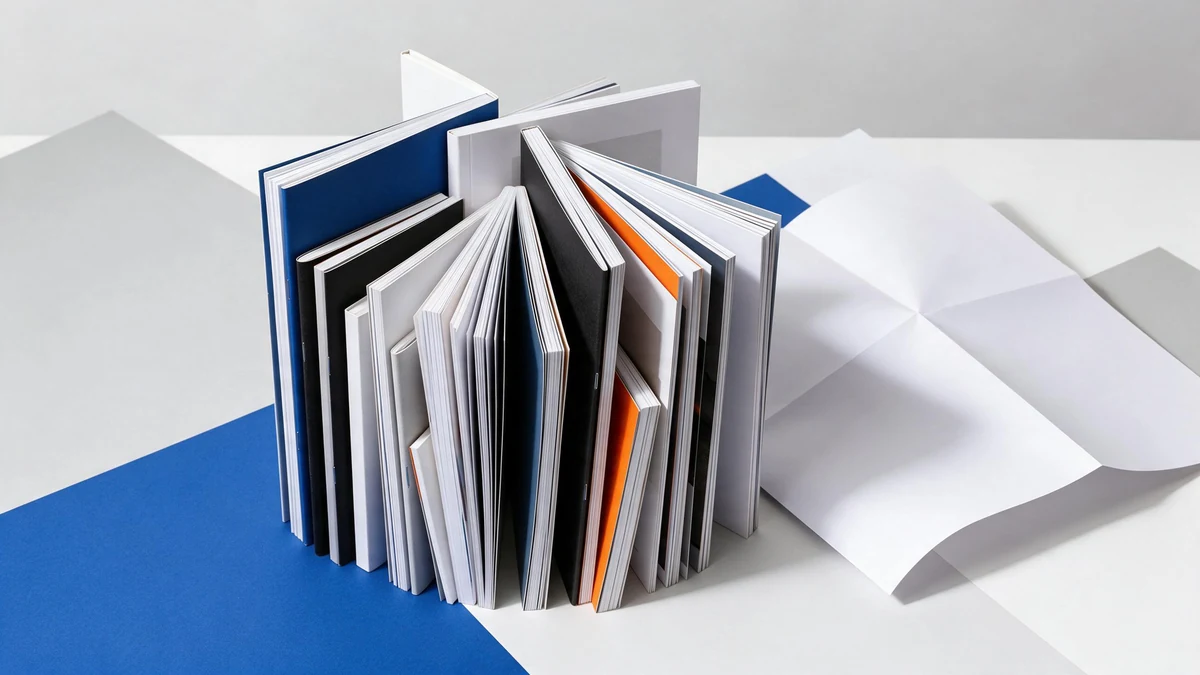
A4 booklets print on larger A3 sheets, two pages per side, then fold and bind to 210 × 297 mm.
LeadWorks suggests locking in your page count and your binding method before you ever open any print dialog, since those two decisions end up shaping almost everything that follows. This guide walks through what A4 booklet printing actually is, how it differs from standard A4 printing, which binding and page-arrangement settings really matter, what paper and GSM you should pick, and how to steer clear of the most common page-order mistakes.
Quick Takeaways
- Print A4 booklets on A3 sheets folded in half, two pages per side.
- Keep total page count a multiple of 4 to avoid blanks.
- Use saddle-stitch for 8–64 pages; switch to perfect binding beyond that.
- Choose 90–120 GSM inner pages and 200–300 GSM covers.
- Let Acrobat’s Booklet mode handle imposition and manual duplex reloading automatically.
What Is A4 Booklet Printing and What Finished Size Do You Actually Get?
A4 Booklet Printing gives you a finished booklet where each closed page measures 210 × 297 mm, which is the standard A4 size. To make those pages, a larger A3 sheet gets printed with two pages on each side, then folded and bound together, as Canon’s booklet guidance explains. So the “A4” label names the finished page you actually hold in your hand, not the flat sheet it was printed on in the first place.
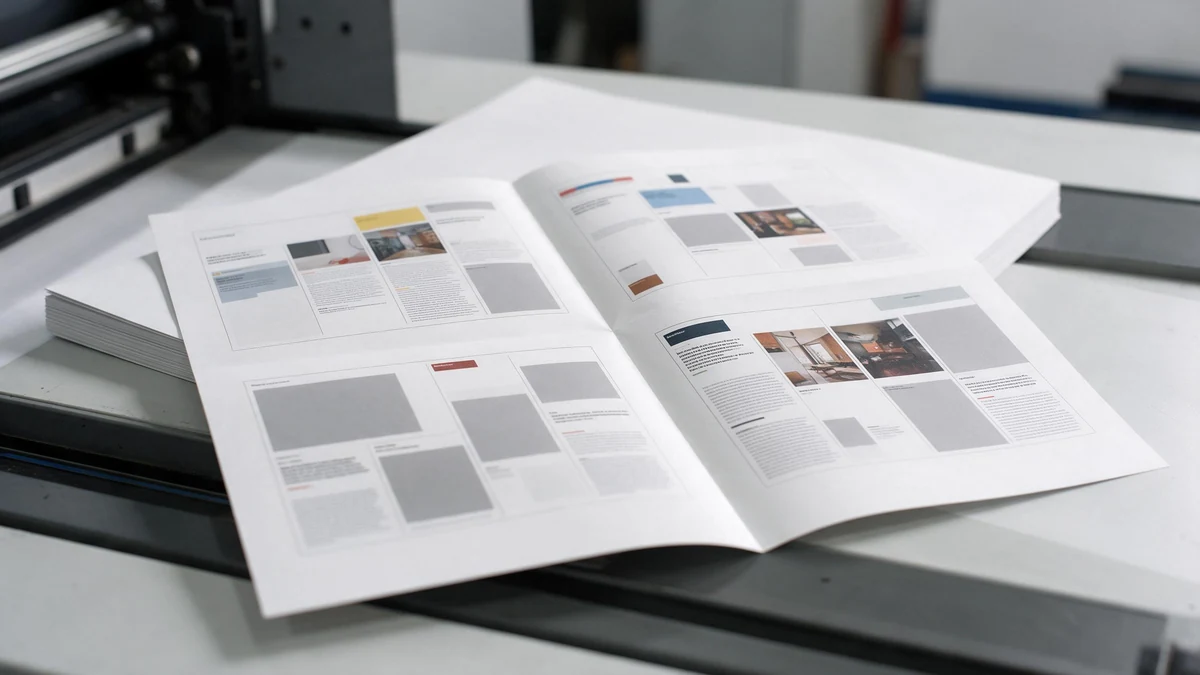
Flat size is A3 (297 × 420 mm); fold it in half and you get a finished A4 page.
That naming is exactly the spot where buyers get tripped up, because the word “A4” can describe two completely different jobs. In one version, an A3 sheet folds down to an A4 spread, which gives you full A4 pages. In the other, A4 sheets fold in half to make an A5 booklet, so you get the same spec sheet but half the finished size. You should always confirm which one you’re actually ordering.
What’s the difference between flat size and finished size?
Flat size is the sheet before it gets folded, and finished size is the page after folding and trimming. For a true A4 booklet, the flat sheet is A3 (297 × 420 mm) and folds down to a 210 × 297 mm page. Press operators also add bleed, which basically means printing that runs right to the paper edge, so files are made slightly larger than the trim line. A4 booklets need 3 mm bleed on every edge, going by Paperlust’s 2026 A4 booklet specification, and that turns a 210 × 297 mm page into a 216 × 303 mm artwork file before trimming happens.
What flat size gives which finished booklet?
| Flat sheet | Fold | Finished page | Artwork file (with bleed) |
|---|---|---|---|
| A3 (297 × 420 mm) | Half | A4 (210 × 297 mm) | 216 × 303 mm |
| A4 (210 × 297 mm) | Half | A5 (148 × 210 mm) | 154 × 216 mm |
LeadWorks recommends locking in the finished size in writing before any proof gets made. A spec marked “A4 booklet” that quietly means A5 is really the most common sizing dispute of them all, and it only shows up after the folded sample arrives at the door.
Why Do A4 Booklet Page Counts Have to Be Multiples of Four?
A4 booklet page counts must divide by 4 because every folded sheet creates exactly four pages. One A3 sheet, printed on both sides and folded in half, gives you a front and back for each half, that’s two pages per side, four pages total. Miss that math and your printer adds blanks: booklet-printing guides confirm page counts should be a multiple of four, with blanks filled in automatically if you don’t.

Flat size is A3 (297 × 420 mm); fold it in half and you get a finished A4 page.
How Does One Folded Sheet Become Four Pages?
Picture a single A3 sheet. Fold it once down the middle and you get an A4 booklet with four surfaces: page 1 (outer front), page 2 (inner front), page 3 (inner back), and page 4 (outer back). This is imposition, the arranging of pages so they appear in the right order after folding. Canon’s own printing guidance describes a booklet as two pages on each side of each sheet, then folded in half.
What Happens to a 14-Page Document?
A 14-page file won’t print clean, because fourteen isn’t divisible by 4. The press rounds up to the next multiple, 16 pages, and inserts 2 blank pages. You now have four sheets instead of a tidy count, with two empty surfaces floating somewhere inside.
Smart planning beats accepting random blanks. Place the extras where they help: an inside cover notes page, a contact panel, or a quote. Many commercial specs, like one A4 booklet product requiring files in steps of four from 8 to 56 pages, exist precisely for this reason.
- Target the nearest multiple: content fits best at 8, 12, 16, 20, or 24 pages.
- Design blanks on purpose: move spare pages to the inside front or back cover.
- Keep your cover in the count: front and back covers consume page 1 and the final page.
LeadWorks flags count mismatches during prepress, so blanks never surprise you mid-run. Lock your page count before layout, not after.
How Do You Set Up a Print-Ready A4 Booklet PDF with Bleed, Margins, and Resolution?
Set your document up at 210 x 297 mm, then add 3 mm bleed on all four edges, keep your text at least 3-5 mm inside the trim line, use images at 300 DPI, and export everything in CMYK. The industry A4 specs confirm that the finished A4 trim measures 210 x 297 mm with 3 mm of bleed on every edge (2026). If you miss even one of these steps, your file either gets rejected or comes back printed with thin white slivers along the edges.

Set 210 × 297 mm, add 3 mm bleed, keep text 3–5 mm inside the trim, and use 300 DPI CMYK.
Bleed basically means the artwork that runs right off the edge of the page. Printers trim whole stacks of paper with a blade, and that blade can drift by as much as 1 mm. Without bleed, you end up with thin white lines where the ink stops just short of the edge. Your artboard with bleed added becomes 216 x 303 mm, which is the same size that major UK printers list for A4 booklet artwork prepared at 303 x 216 mm (2026).
What margins and gutter allowance keep your text safe?
Keep all of your important content, meaning the body text, the logos, and the page numbers, at least 3-5 mm inside the trim line, and then add a bit of extra room near the binding, which is called the gutter allowance. On saddle-stitched A4 booklets, meaning booklets held together with staples through the fold, the inner pages creep toward the spine as the booklet gets thicker. For a 40-page job, push the content on inner pages an extra 3-6 mm away from the fold so that nothing disappears into the staple.
Why do RGB files shift color, and how do you flatten transparency?
RGB is the light your screen gives off, while CMYK is actual ink on paper. Bright RGB blues and greens sit outside the range that ink can reproduce, so the press is forced to swap them for the nearest ink mix it can manage, which often looks duller. Convert to CMYK yourself before you export, so that you control how that color shifts rather than leaving it to the RIP, which is the software that drives the press. Flatten your transparency too, because drop shadows and layer blends can print as gray boxes if the press software reads them differently than you expect.
| Setting | Correct value |
|---|---|
| Document size | 210 x 297 mm |
| Bleed | 3 mm each edge |
| Safe margin | 3-5 mm from trim |
| Image resolution | 300 DPI |
| Color mode | CMYK |
| Transparency | Flattened |
LeadWorks runs a preflight check on every A4 Booklet Printing file against these exact numbers before the plates are made, so it catches low-DPI images and missing bleed right at the moment you upload.
Saddle Stitch vs Perfect Binding — Which Is Better for Your A4 Page Count?
Saddle stitch comes out ahead for A4 booklets running up to roughly 40 to 64 pages, while perfect binding becomes the smarter pick once you go past 48 to 60 pages, mostly because it needs a spine of around 2 to 3 mm to hold the glue properly. Saddle stitch works by folding the sheets and stapling right through the crease, whereas perfect binding stacks the pages flat and glues them onto a wrapped cover. Page count and paper weight are really what decide which approach works for you.
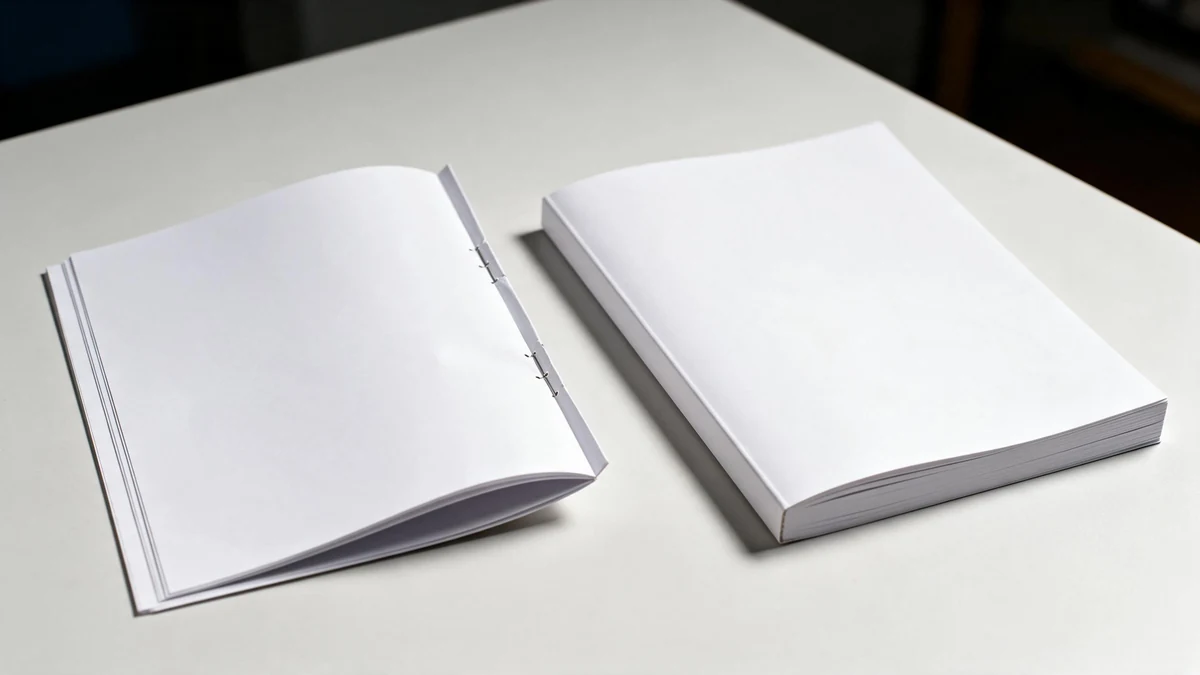
Saddle stitch up to about 64 pages; switch to perfect binding once the page count climbs.
Common mistake: Manually arranging pages in sequential order (1, 2, 3, 4…) before printing a booklet. This happens because people forget that folded sheets scramble the sequence — page 1 must sit beside page 16 on the same A3 side. The fix: let Acrobat’s Booklet mode handle imposition automatically, and keep your total a multiple of 4.
Thickness is the genuine limiting factor here. A saddle-stitched booklet can only be as thick as the staple is able to bite through, so on 130gsm text stock you can generally push things to 60 or 64 pages, but on heavier 170gsm stock that number drops closer to 40 pages before the fold starts bulging and the staple begins to struggle. Perfect binding, on the other hand, needs enough paper to build a spine you can actually read, and below 32 pages the glued edge is simply too thin to print a title on cleanly.
How does page count and paper weight map to each method?
You can use the thresholds below as a starting point for A4 Booklet Printing. The numbers do shift with GSM, though, so it’s always worth confirming with your printer’s spine calculator before committing.
| Page count | Paper weight | Recommended binding |
|---|---|---|
| 8–40 | Any text stock | Saddle stitch |
| 40–64 | 100–130gsm | Saddle stitch |
| 32–48 | 115gsm+ | Perfect binding |
| 64+ | Any | Perfect binding |
What’s creep, and how do you fix it on thick saddle-stitched booklets?
Creep, which some people also call shingling, is what happens when the inner pages push outward from the fold, so the center pages end up sticking out past the cover before anything gets trimmed. The thicker the booklet, the worse this effect becomes, and a 64-page saddle-stitched A4 job can creep around 3 to 4 mm. The way to deal with it is creep compensation, where the layout gently nudges the inner-page content inward to make up for it. LeadWorks applies creep compensation during imposition, so any text near the outer margin stays even and uniform after trimming. Skip that step, and your page numbers will drift right off the edge.
What Paper Weight, Finish, and Cover Options Work Best for A4 Booklets?
For most A4 booklets, pair 130,170gsm silk text pages with a 250,300gsm cover. Text stock below 100gsm feels flimsy and shows ink from the other side (called show-through); covers under 200gsm bend at the spine. GSM means grams per square meter, the paper’s weight per sheet, so heavier numbers mean thicker, stiffer paper.
Finish changes how the booklet reads and looks. Gloss makes photos pop but shows fingerprints and fights text-heavy reading under bright light. Matte kills glare and feels premium but can mute color. Silk sits in the middle, slight sheen, good color, easy to read, which makes it the safe default for a 32-page product catalog.
When is a heavier cover actually worth the extra cost?
Upgrade the cover when the booklet gets handled often or carries a brand. A 300gsm cover resists curling and dog-earing far better than 250gsm, which matters for annual reports, menus, or sales decks kept on desks for months. For a one-time event handout, 200,250gsm is enough, spending more adds cost with no payoff.
- 90–100gsm text: lightweight flyers inside saddle-stitched booklets; cheapest, but risks show-through on dark images.
- 130–150gsm text: the standard for catalogs and brochures; good opacity, folds cleanly.
- 170gsm text: premium feel for photo-led booklets; adds spine thickness, so check your binding limit.
- 250–350gsm cover: durable front and back; 350gsm needs scoring before folding to avoid cracking.
How does paper choice change binding and thickness?
Heavier paper multiplies thickness fast across many pages. Saddle stitch starts to bulge past 40,64 pages, and thick stock worsens the creep already described, inner pages pushing outward when folded. Switch to 130gsm text if a saddle-stitched booklet feels too stiff at the fold. Perfect binding, by contrast, handles 150,170gsm well because pages lie flat against the glued spine.
A4 Booklet Printing files should match these stock choices before you order. Standard A4 trim is 210 x 297 mm with 3 mm bleed (2026), and that geometry stays the same whatever GSM you pick. LeadWorks advises choosing finish by use case first, silk for mixed text and photos, matte for reading comfort, then matching cover weight to handling life, not just budget.
| Stock / GSM | Best Use Case | Watch For |
|---|---|---|
| 90gsm text | Budget event flyers | Show-through on dark pages |
| 130gsm text | Catalogs, brochures | Best all-round value |
| 170gsm text | Photo booklets | Adds spine bulk fast |
| 250gsm cover | Short-life handouts | Light curl over time |
| 350gsm cover | Reports, menus | Score before folding |
What Are the Most Common A4 Booklet Printing Mistakes, and How Does LeadWorks Prevent Them?
The four most common A4 Booklet Printing mistakes are missing bleed, odd page counts, low-resolution images, and ignored creep. Each gets caught by a preflight check before plates are made. Industry artwork guides require 3 mm bleed on A4 booklet files, so files arriving without it are the single most frequent rejection reason at any serious print house.
Why do missing bleed and odd page counts keep breaking A4 booklet jobs?
Missing bleed and odd page counts break jobs for different reasons, and both are caught before printing. Bleed is the 3 mm of color that extends past the trim line so no white slivers show after cutting; a file supplied at exactly 210 x 297 mm has zero safety margin, so when the cutting blade drifts up to 1 mm the background color stops short.
Odd page counts are the other killer. Since every folded sheet holds four pages, a 23-page file can’t be imposed. LeadWorks preflight flags this and pads to 24 with a planned blank, rather than letting software silently insert a stray page mid-document.
How does LeadWorks catch low-res images and creep?
Low-res images and creep are both caught by automated preflight plus imposition proofing. Images below 300 DPI at final print size get flagged, a logo pulled from a website at 72 DPI looks sharp on screen but turns blurry on paper.
Creep (page shift) is the subtler one: on thick saddle-stitched booklets, inner pages push outward from the folding bulge, trimming narrower than outer pages. LeadWorks applies creep compensation during imposition, nudging inner-page content inward so margins stay even across all spreads, a step most desktop tools skip entirely.
| Mistake | What goes wrong | Preflight fix |
|---|---|---|
| No bleed | White edges after trim | Reject under 3 mm bleed |
| Odd page count | Can’t impose | Pad to multiple of 4 |
| Low-res image | Blurry print | Flag below 300 DPI |
| Ignored creep | Uneven inner margins | Apply shingling shift |
What Is the Cheapest Way to Print an A4 Booklet Without Looking Cheap?
The cheapest route that still looks premium is digital printing with saddle stitch for small runs, switching to offset once you pass a few hundred copies. Keep text pages at 130gsm silk and stick to the standard 210 x 297 mm trim. Choosing the right print method for your run size cuts cost far more than skimping on paper.
Four levers drive A4 Booklet Printing cost: quantity, print method, binding, and paper weight. Pull them in the right order and you save money without the result feeling flimsy.
When Does Offset Beat Digital for A4 Booklets?
Offset becomes cheaper per copy once you cross roughly 300,500 copies, because the fixed plate and setup cost spreads across more sheets. Below that, digital wins, there are no plates to pay for.
| Quantity | Best method | Why |
|---|---|---|
| 50 copies | Digital / print-on-demand | No plate cost; lowest total outlay |
| 500 copies | Crossover zone | Offset setup starts paying off |
| 2000 copies | Offset | Lowest cost per unit at volume |
How Do You Cut Cost Without Looking Cheap?
Choose smart specs, not thin ones. These moves lower the bill while keeping a quality feel:
- Saddle stitch over perfect binding: no glued spine, fewer steps — fine for booklets up to about 64 pages.
- Lighter text stock: 130gsm instead of 170gsm trims paper weight and shipping cost, yet reads as solid.
- Standard A4 trim: 210 x 297 mm avoids custom-cut charges and paper waste.
- Keep page counts in steps of four: no blank filler pages, no wasted sheets.
For a 2000-copy marketing run, LeadWorks steers brands toward offset with a 250gsm matt-laminated cover, the laminate costs little per unit but stops the cover looking cheap. Print-on-demand still makes sense below 100 copies, where plate setup would dwarf the paper cost.
Frequently Asked Questions About A4 Booklet Printing
Short answers to the four questions readers ask most about A4 Booklet Printing: how to print one, how to turn A4 sheets into an A5 booklet, which print format is correct, and when A3 or offset printing beats digital for long runs.
How do you print a booklet in A4?
Open your file in Adobe Acrobat and choose File > Print, then pick Booklet under the page sizing options. Acrobat’s booklet mode handles duplex automatically; if your printer prints one side at a time, select Front side only, reload the stack, then run the backs. Microsoft Word offers the same path under File > Print by choosing Booklet in the two-sided menu.
Can you print A4 sheets as an A5 booklet?
Yes. Each flat A4 sheet holds two A5 pages per side, so folding it in half gives a 148 x 210 mm A5 booklet. The printer places two pages on each side of the sheet, then folds, that’s the standard imposition logic behind every saddle-stitched job. A 20-page A5 booklet therefore needs 5 physical A4 sheets.
What’s the correct print format for a booklet?
Supply a single-page, page-ordered PDF, not pre-imposed spreads. Set the trim to 210 x 297 mm with 3 mm bleed on all edges, matching standard A4 booklet specs. The print software performs the imposition; sending it pre-arranged spreads is the fastest way to break the fold order.
Is A3 or offset printing better for larger runs?
For runs above roughly 500 copies, offset usually beats digital on unit cost because plate and setup costs spread across the quantity. A3 sheet-fed presses carry more A4 pages per pass, cutting press time. LeadWorks runs sheet-fed offset for high-volume book orders where per-unit price matters more than fast turnaround.